 FitHome
Accessibility: TalkBack, comfort mode and colour-blind charts
How FitHome works with TalkBack, offers high-contrast and colour-blind-safe charts, a simpler Comfort mode, distinct haptic cues and a one-handed layout.
A workout app is used in awkward conditions. You're on the floor, a bit out of breath, maybe without your glasses, often with the phone a metre away. Good accessibility helps everyone in that situation, and for some people it decides whether they can use the app at all.
This post covers what FitHome does for screen-reader users, people with colour-vision differences, older users and anyone training in a quiet home.
A workout player that works with TalkBack
Many workout timers are hard to use with a screen reader: buttons without labels, and timers that either say nothing or announce every second. FitHome's player tries to avoid both problems.
- Every control is labelled. Every icon-only button has a description, and touch targets are at least 48 dp.
- Announcements at the right moments. When a new exercise or rest begins, TalkBack hears it. During a hold, the time left is announced at 30 and 10 seconds, and a rest announces "Rest ends in 3 seconds". Announcements are spaced at least four seconds apart, so they don't talk over each other.
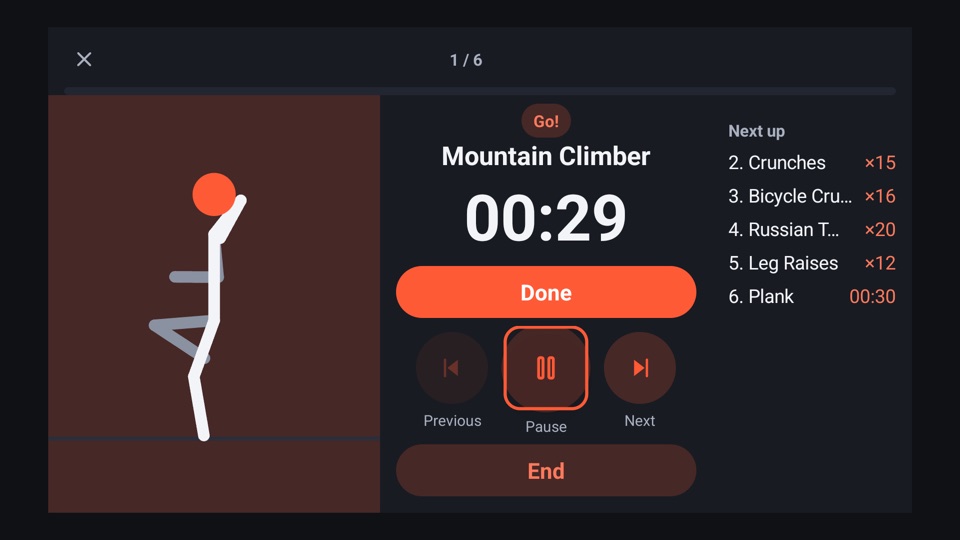
- A large pause target. With TalkBack on, the whole exercise animation becomes a "double-tap to pause or resume" area, so you don't have to find a small button mid-exercise.
- Strength sets you can adjust by gesture. On Android 5.0 and newer, each set row in Strength has TalkBack actions for one more or one fewer rep, and more or less weight.
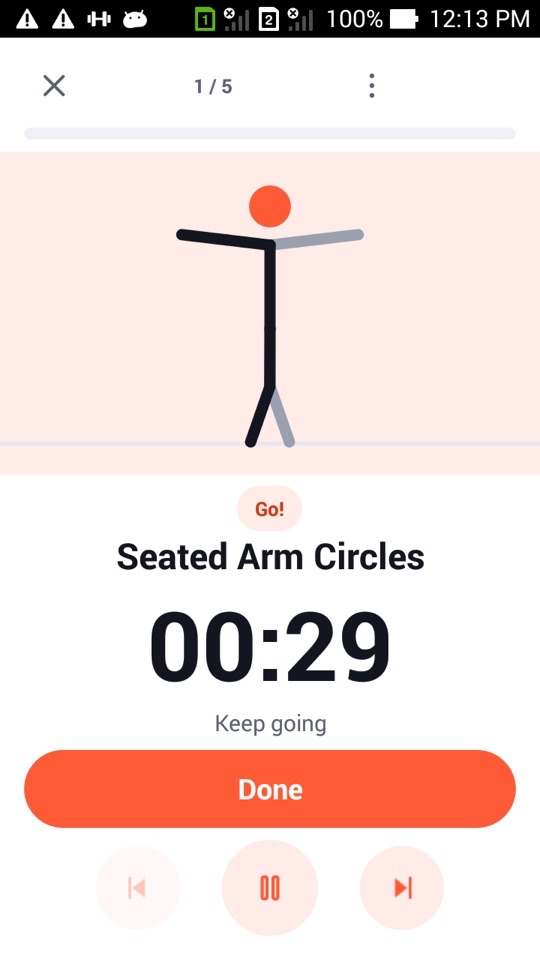
If you'd rather not look at the screen at all, turn on Audio guide under Settings → Sound. It reads each exercise's steps when it begins and lets you keep going with the screen off. Unplugging your headphones pauses the workout. There's more about it in Adapt today, pace and the workout buddy.
Charts you can hear, read as a table, and tell apart
FitHome's charts are drawn by the app itself, so we can add accessibility directly:
- Each chart gives TalkBack a summary of the trend, minimum, maximum and latest value, and you can move through individual points.
- Every chart has a Show as table link that replaces the chart with the same numbers as plain rows.
- On a keyboard or TV remote, the left and right arrows step through bars and points.
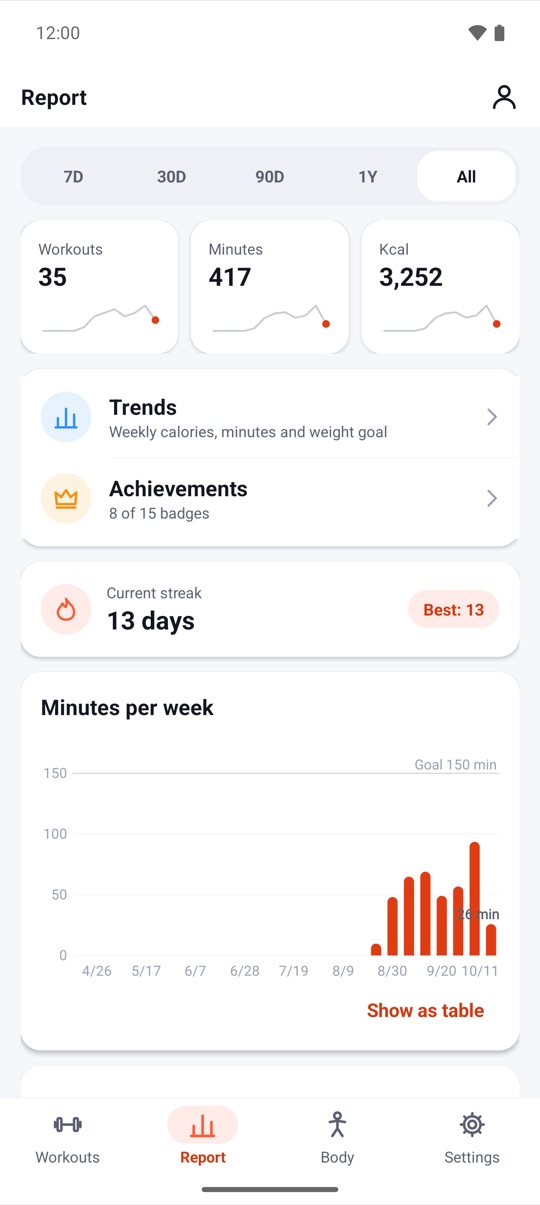
Contrast & colour in Settings → Appearance offers five options: Standard, High contrast, and Colour-blind safe for deuteranopia, protanopia or tritanopia. Outside Standard, chart series also get hatch, dot or dash patterns and labels at the end of each line, so you can tell series apart without relying on colour. High contrast also darkens secondary text for stronger contrast against the background. If Android's own high-contrast text setting is on, FitHome adds the patterns even in Standard mode.
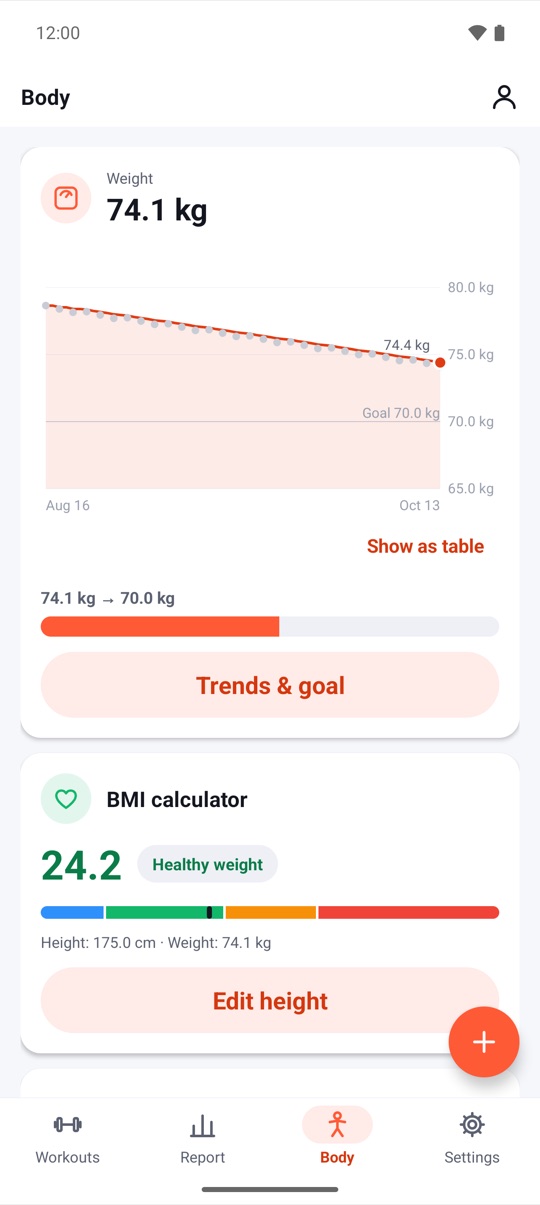
FitHome never uses colour alone to show a state. A completed goal, a paused plan, a rest phase or a personal record always comes with an icon and a word. The BMI card, for example, says "Healthy weight" in text next to the coloured scale.
Comfort mode: large and simple
Comfort mode (large and simple) is a single switch in Settings → Appearance for people who want fewer choices on screen. When you turn it on:
- Home is simplified to a large Today's workout card with a big Start button and your weekly goal. Everything else moves under "More workouts and tools".
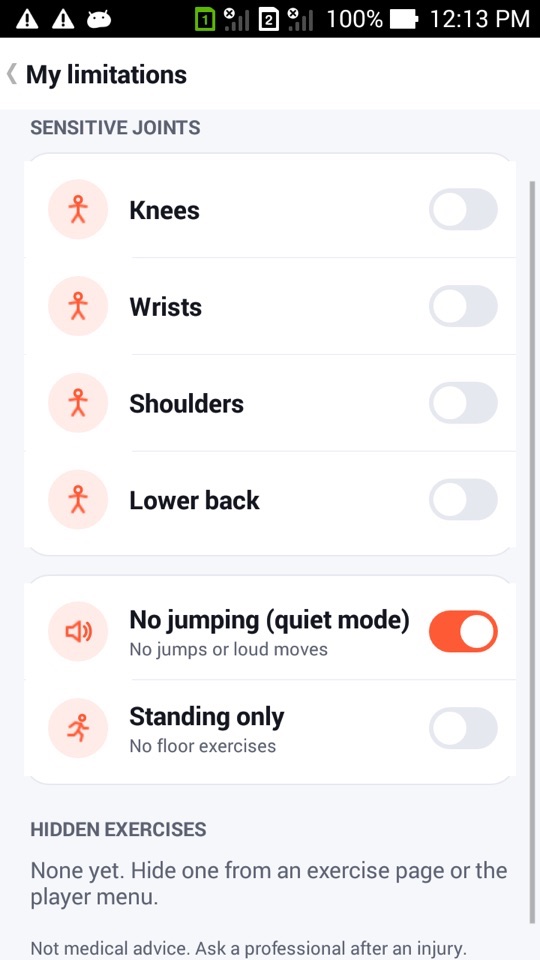
- The no-jumping filter from My limitations is turned on, so sessions stay low impact.
- The get-ready countdown before each exercise gets three extra seconds.
- Deleting something asks for confirmation first, in addition to the usual undo.
When you turn Comfort mode off, your previous no-jumping setting is restored exactly as it was. Layouts wrap text onto extra lines rather than cutting it off, and FitHome follows your system font size.
Haptics and visual cues for quiet homes
Haptics & visual cues gives each moment its own vibration pattern: the 3-2-1 countdown, exercise start, halfway, rest is over, a personal record and workout done. Learn the patterns lets you play each one. Choose Haptics only to turn off all sounds and voice, set the vibration strength, and optionally add a screen flash for each cue. Flashes are limited to fewer than three per second.
One hand, either hand
Reach mode (one-handed) moves the player's main buttons and steppers toward the bottom of the screen. Controls side puts them under your right or left thumb. Both are in Settings → Sound.
FitHome is not a medical device. Check with a doctor or physiotherapist before starting a new exercise routine, especially with an injury or a health condition.
How to set up FitHome for your needs
- Open Settings and find Appearance.
- Tap Contrast & colour and choose High contrast or the colour-blind-safe option that matches your vision.
- Turn on Comfort mode (large and simple) if you'd like a simpler Home and gentler defaults.
- Under Sound, open Haptics & visual cues and tap Learn the patterns to feel each vibration.
- Turn on Audio guide if you want every step read aloud, and Reach mode if you train with one hand free.
- If you use TalkBack, start any plan. Exercise changes and the remaining time are announced automatically.
FAQ
Does FitHome work with TalkBack on older Android versions?
Yes. Labels and announcements work from Android 4.3. Gesture actions on Strength set rows need Android 5.0 or newer. On older versions, use the on-screen + and − buttons.
Which colour-blind option should I choose?
Choose the one that matches your type of colour vision: deuteranopia and protanopia are the red-green types, and tritanopia is the blue-yellow type. If you're not sure, try each one on the Report tab and keep the one where the lines are easiest to tell apart.
Does Comfort mode change my workouts?
It turns on the no-jumping filter, so jumping and loud moves are swapped for quieter alternatives. It also adds three seconds to the get-ready countdown. Your plans and history stay as they are.
Can I train without any sound at all?
Yes. Choose Haptics only in Haptics & visual cues. Every cue then comes as a vibration, and you can add a screen flash as well.