 FitHome
Train on your TV with a remote
FitHome runs on Android TV and Google TV with a big timer, D-pad navigation and media keys, plus tablet layouts with two panes and picture-in-picture.
A phone on the floor is fine for a quick session, but it's hard to read from a yoga mat a couple of metres away. FitHome also runs on Android TV and Google TV. You get the same plans, the same voice coach and the same history, in a layout designed for a big screen and a remote.
There's no separate TV app to buy. FitHome is a one-time purchase on Google Play, and the same purchase covers phones, tablets and TV.
Built for the remote, not a touchscreen
On a TV, FitHome uses a dark theme, larger text and margins that keep everything clear of the screen edges. Everything works with the D-pad, OK and Back. The selected item always has a clear orange outline and grows slightly, so you can see where you are from across the room.
The home screen is arranged in Browse rows: Continue (your challenge day), Recommended for you, quick sessions, plans by body part, Breathe, Favorites, the low-impact packs, stretches, your own workouts and Strength. Each row remembers the card you last selected. When you open a screen, the main action is already selected: Start on a plan, Continue on the home screen.
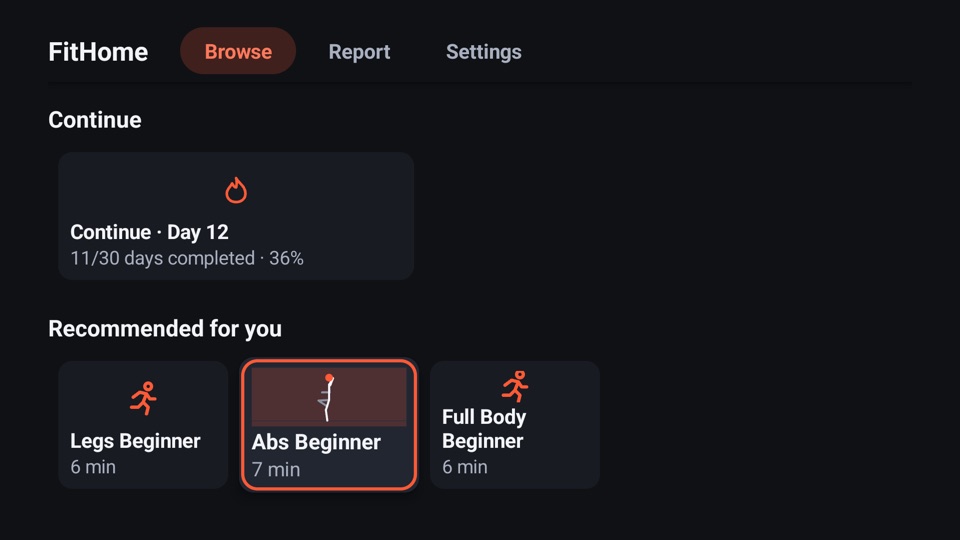
FitHome never makes you type on the TV. Every field has a sensible default, and numbers such as your weight, reps or seconds use + and − steppers. Hold a stepper button down to change the value in steps of 10.
The player, from your sofa (or your mat)
The TV player shows the exercise animation on the left, the name and a large timer in the middle and a Next up list on the right. When it starts, Pause/Play is already selected, so pressing OK on the remote pauses and resumes.
Your remote's media keys work too:
- Play/Pause toggles the workout.
- Next or Fast-forward goes to the next exercise.
- Previous or Rewind goes back one exercise.
- Stop ends the workout and saves it.
- Back opens the quit dialog with Continue selected, so pressing Back by accident doesn't end your session.
Bluetooth remotes and headsets work through the same media controls. If you go to the TV's home screen, switch HDMI input or the screen saver starts, the workout pauses. The screen only stays on while the player is open.
Plans, Report and Settings on the big screen
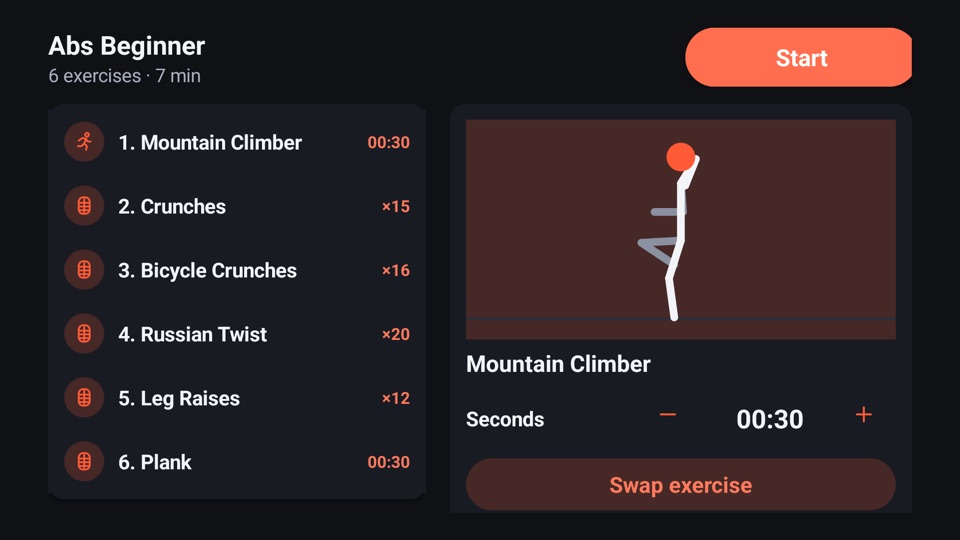
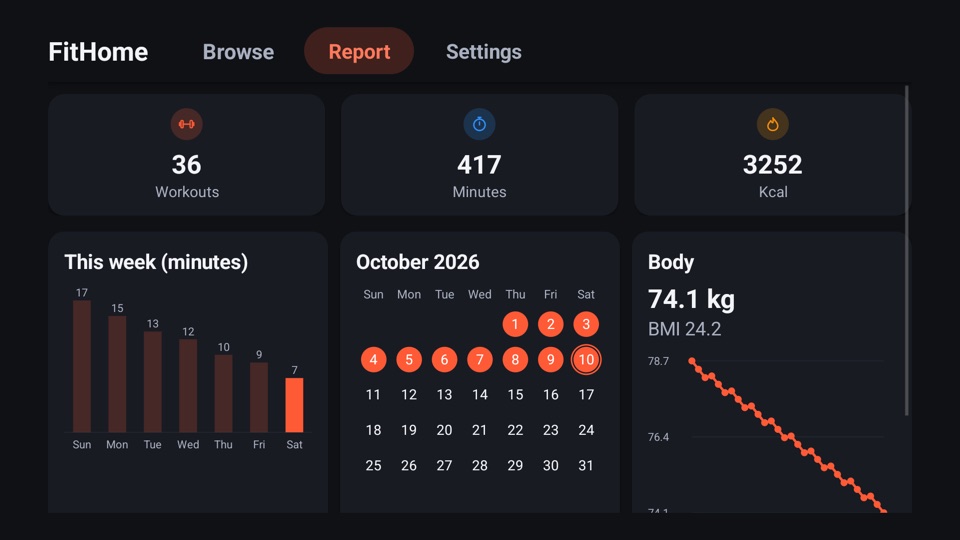
Plan pages list the exercises on the left. The panel on the right shows the selected exercise with its animation, a ± stepper and Swap exercise. Report is a three-column grid with your totals, the week's minutes, a month calendar and your body weight. Charts can be explored with the left and right arrows.
Some phone features don't make sense on a TV, so FitHome leaves them out rather than showing broken versions. There's no step counter (a TV has no step sensor), and reminder settings are hidden. Instead, on Android 8.0 and newer, your next workout can appear on the TV's home screen in the Watch Next row.
Strength on TV
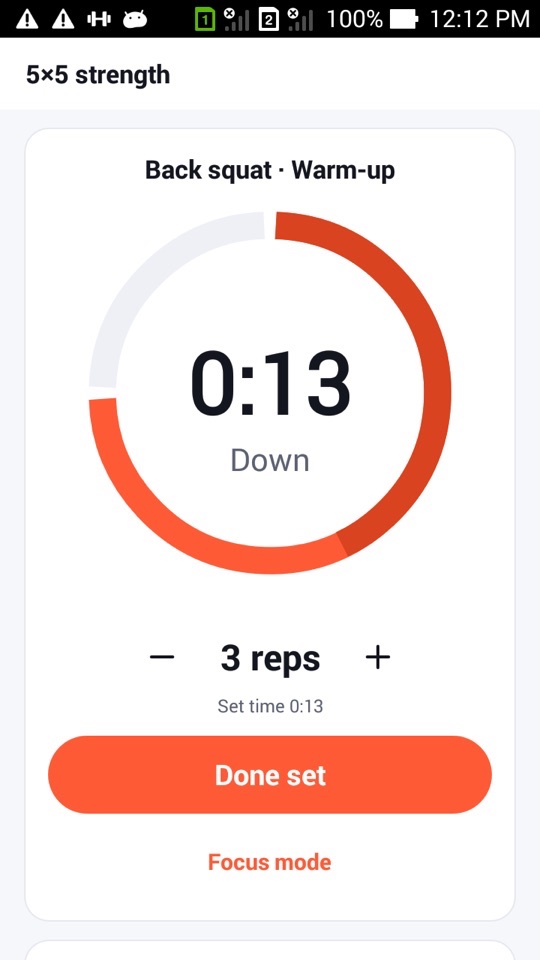
The Strength row has your routines, the templates and the plate calculator. In the strength focus screen, OK starts or finishes a set (or skips the rest), left and right change reps, up and down change the weight by one plate step, and holding OK changes the set type. Play/Pause starts and stops the set timer, Fast-forward adds 15 seconds of rest, and Next skips the rest. The full Strength tour is in Strength training with a per-set focus timer.
Tablets: two panes, picture-in-picture and keyboards
On a tablet, the bottom bar becomes a side navigation rail and lists become two- or three-column grids. On wide screens, Workouts shows the plan list and the selected plan side by side, and Settings shows categories on the left and their options on the right.
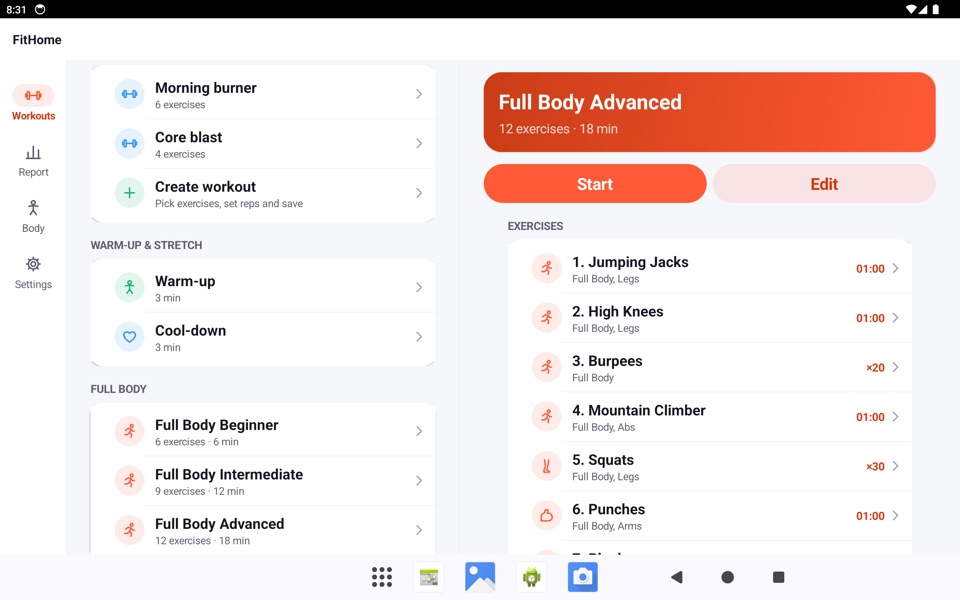
The player keeps running if you resize it, use split screen or rotate the device. On Android 8.0 and newer it can shrink to a picture-in-picture window with Play/Pause and Next. With a hardware keyboard, Space pauses, the arrow keys move between exercises and Ctrl+F searches exercises from any screen.
FitHome is not a medical device. Clear enough space around you before training in front of the TV, and check with a doctor or physiotherapist before starting a new exercise routine, especially with an injury.
How to start a workout on your TV
- Install FitHome on your Android TV or Google TV from Google Play.
- Open it from the TV home screen. If it's your first time, use the D-pad to choose your language, goal, level and training days. Body measurements use steppers, so there's nothing to type.
- On the Browse screen, press OK on Continue or on any plan card.
- On the plan page, Start is already selected. Press OK.
- During the workout, use OK or Play/Pause to pause, and Next or Previous to move between exercises.
- Press Back if you want to stop. Continue is selected in the dialog, so a second press resumes your workout.
FAQ
Do I have to buy FitHome again for the TV?
No. FitHome is a single app for phone, tablet and TV, covered by the same one-time purchase on Google Play.
Does my phone history appear on the TV?
Not automatically. Each device keeps its own history, because FitHome doesn't use the internet. You can move data between devices with an export file where the TV can open one.
My remote has no media keys. Can I still use FitHome?
Yes. Everything works with the D-pad, OK and Back. The media keys are just a shortcut.
Is there anything that only works on the phone?
The step counter, reminders, widgets and notification controls are phone and tablet features. On a TV, your next session can appear in the Watch Next row instead.