 FitHome
Why FitHome works offline, with no account
FitHome has no internet permission, no account and no servers. Here is what that means for your workouts, your backups and your privacy.
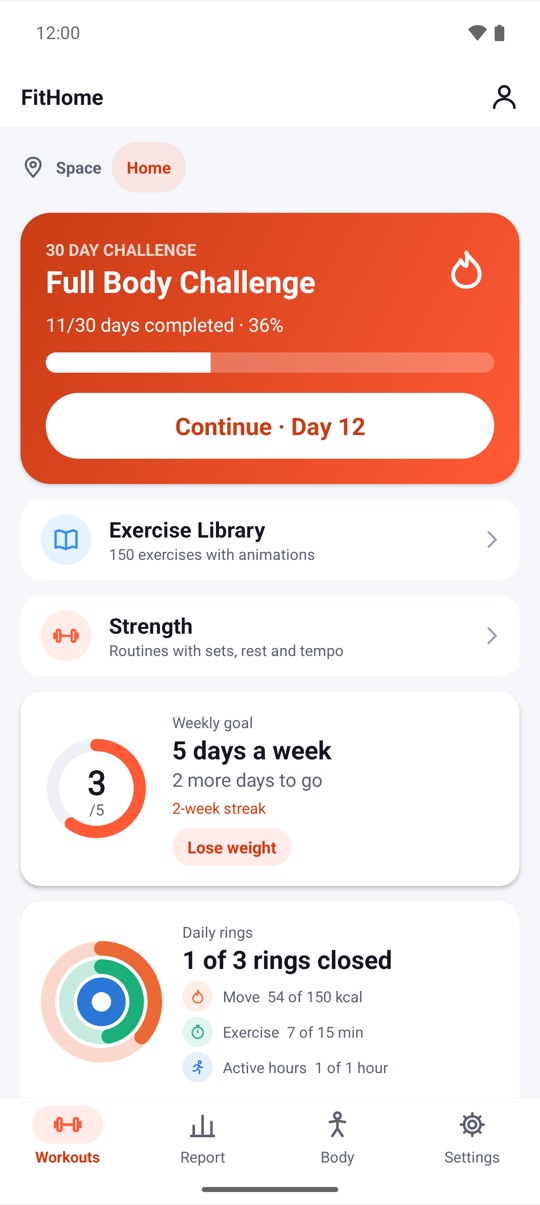
Most fitness apps start by asking you to create an account. FitHome doesn't, and that's on purpose. You open it, pick a goal and start moving. Your workouts, weight entries and settings live on your phone and nowhere else.
Here's how that works, and how you still get backups, phone transfers and open-format exports without a server.
No internet permission, not just "no tracking"
Plenty of apps promise not to track you. FitHome goes one step further: it doesn't request Android's INTERNET permission. Without it, the app can't open a network connection, so it has no way to upload anything, even by accident.
This isn't a setting that could quietly change later. The app's build removes the internet and network-state permissions, and a check fails the release build if either one comes back, for example through a library. There are no ads, no analytics SDK and no crash reporter that phones home.
FitHome is a one-time purchase on Google Play. Buying it is handled entirely by Google Play, so the app needs no billing code, no licence server and no sign-in.
See it for yourself in Privacy & data
You don't have to take our word for it. Open Settings → Privacy & data (we call it the Trust center). The first card reads "This app has no internet permission". FitHome checks this against the package that's actually installed on your phone, rather than just displaying a fixed message.
Below that, every permission the app uses is listed with a plain reason: vibration for exercise changes, notifications for reminders and the workout in progress, "Run at startup" so reminders come back after a restart, and so on. Permissions that need your approval show whether you've granted them.
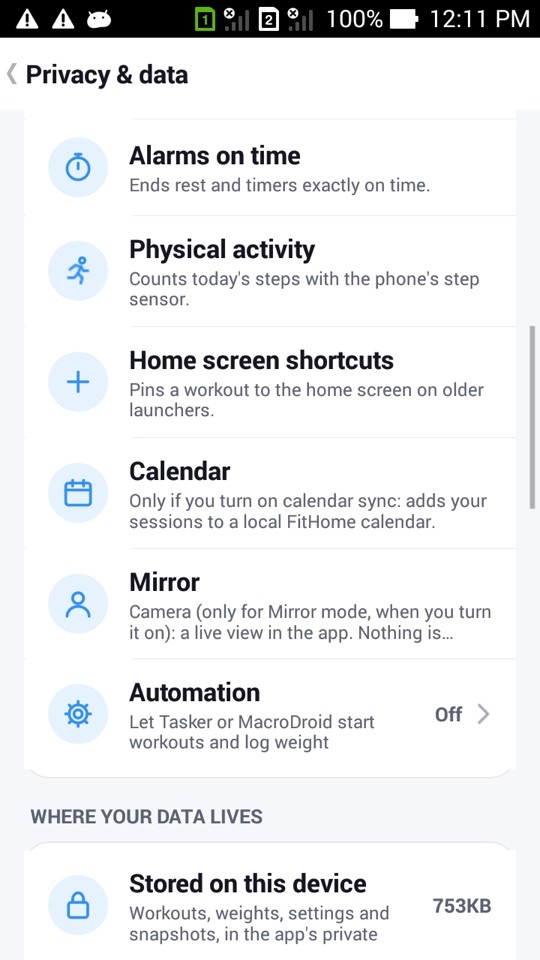
The same screen shows how much space your data takes up (databases, settings and snapshots in the app's private storage) and when your last backup ran.
Backups without a cloud account
Working offline doesn't mean losing everything if your phone breaks. FitHome gives you several layers, all under your control:
- Daily snapshots. The app keeps a local snapshot every day and holds on to the last seven. If the database is ever damaged, FitHome can rebuild it from the newest snapshot that still reads correctly.
- Folder backups. On Android 5.0 and newer you can pick a folder, including one that a cloud drive app keeps in sync. FitHome writes the backup file there daily or weekly. Your sync app moves the file; FitHome itself never goes online. On Android 6.0 and newer you can protect these files with a passphrase, and the screen tells you when that isn't available.
- Export everything. One file with all your data, optionally encrypted with a passphrase.
- Device backup. Android's own backup is allowed by default, and you can switch it off in the Trust center.
When you import a backup, FitHome first shows what the file contains (how many workouts, weight entries and custom workouts) before it replaces anything.
Moving to a new phone
Use Send to another device in Privacy & data. FitHome creates a single passphrase-protected file and hands it to Android's share sheet, so you can send it with Nearby Share, Bluetooth or email. On the new phone, install FitHome, choose Import and enter the passphrase.
Your data in open formats
You might want your history in a spreadsheet or your training plan in a calendar. FitHome exports:
- a CSV workout log with one row per session,
- a full JSON file with workouts, weights, custom workouts and settings,
- an ICS calendar file with your program schedule,
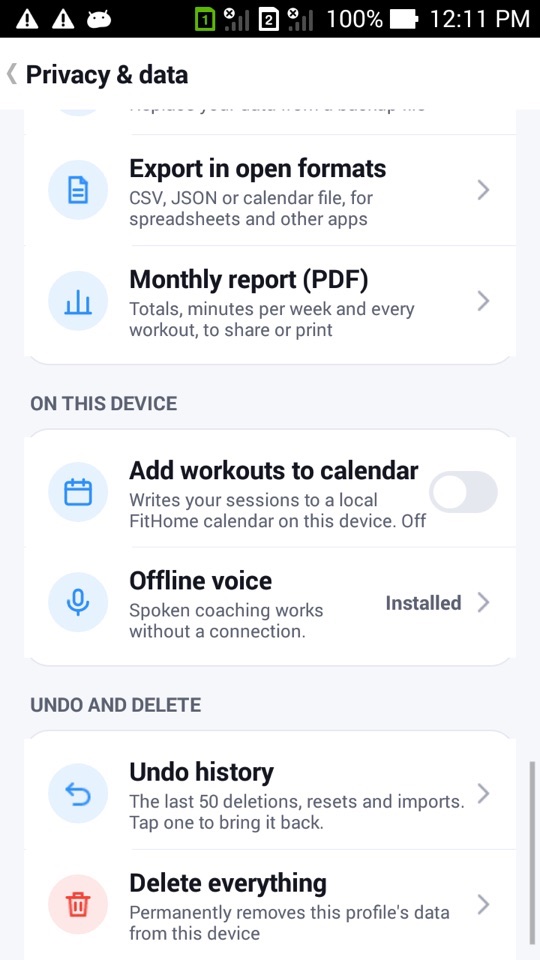
- a monthly PDF report with totals, minutes per week and every workout, ready to share or print (Android 4.4 and newer; on 4.3 you get the CSV instead).
Undo, and a real "delete"
Mistakes happen. Undo history keeps the last 50 deletions, resets and imports, and you tap one to bring it back. When you really want your data gone, Delete everything asks you to type a confirmation, then removes the profile's data, its snapshots and its saved passphrase from the device. Uninstalling the app works too.
A few more things that stay on the phone
- Family profiles. Several people can share one device. Each profile has its own database and settings, with an optional PIN.
- Calendar sync is off by default. When you turn it on, workouts go into a local "FitHome" calendar on the device, not an online one.
- Offline voice. The voice coach uses your phone's text-to-speech. The Trust center checks whether voice data for your language is installed. If it isn't, the player falls back to beeps rather than speaking in the wrong language.
FitHome is not a medical device. Check with a doctor or physiotherapist before starting a new exercise routine, especially with an injury.
How to back up FitHome to a folder you choose
- Open Settings → Privacy & data.
- Choose the folder backup option and pick a folder. If you want an off-device copy, pick one that your cloud drive app syncs.
- Choose daily or weekly.
- On Android 6.0 or newer, set a passphrase if you want the files encrypted. Write it down somewhere safe, because FitHome can't recover it for you.
- Check "Last backup" on the same screen after the first run.
- To restore, use Restore from folder, pick a file and confirm the counts in the preview.
FAQ
Does FitHome need an internet connection for anything?
No. Workouts, the voice coach, charts, reminders and backups all run on the device. The app doesn't request the internet permission at all.
If there's no account, how do I get my data onto a new phone?
Use Send to another device or Export everything to create a file, move it however you like, and import it on the new phone. You'll see a count preview before anything is replaced.
Can I check which permissions FitHome uses?
Yes. Settings → Privacy & data lists every permission with the reason it's needed, and whether you've allowed the ones that need approval.
What happens if I forget my backup passphrase?
The encrypted file can't be opened without it. FitHome never stores your passphrase anywhere it could be recovered from, so keep it somewhere safe.